
This guide focuses on navigating the Thai Revenue Department’s e-Filing system (efiling.rd.go.th), which often reverts to Thai even when accessing the English information portal.
Current Date: January 13, 2026
Primary URL: efiling.rd.go.th
1. The English Interface Strategy
While the main RD website has an English section, the e-Filing portal is predominantly Thai. To navigate this effectively without fluency:
- Use Chrome/Edge Translation: Right-click anywhere on the page and select “Translate to English.” This is the most reliable method for dynamic forms.
- Download the Official English Guide: The RD publishes a line-by-line English translation PDF for the current tax year.
- P.N.D. 90/91 (Personal Income Tax): Download the English Guide PDF (Note: Look for the file named
Guide_90_67orGuide_91_67for the 2024/2025 tax year).
- P.N.D. 90/91 (Personal Income Tax): Download the English Guide PDF (Note: Look for the file named
2. Button & Menu Translations (Visual Reference)
Since the interface buttons are images or scripts that often resist auto-translation, use this glossary to identify key navigation elements.
A. Homepage & Login
| Thai Button / Text | Pronunciation | English Meaning | Action |
|---|---|---|---|
| เข้าสู่ระบบ | Khao Su Ra-bop | Log In | Click this to start. Usually a button at the top right. |
| สมัครสมาชิก | Sa-mak Sa-ma-chik | Register | Click this if you do not have a Tax ID account yet. |
| ลืมรหัสผ่าน | Luem Ra-hat Phan | Forgot Password | Use for password recovery. |
| ยื่นแบบผ่านอินเทอร์เน็ต | Yuen Baep Phan Internet | E-Filing | Main menu to access tax forms. |
| ชำระภาษี | Cha-ra Pha-see | Pay Tax | Click here to pay if you have already filed but haven’t paid. |
| ตรวจสอบผลการยื่นแบบ | Truat Sop Phon | Check Status | Verify if your filing was received or if a refund is processing. |
B. Selecting Your Tax Form
After logging in, you will see a list of forms. Select the one matching your income type:
| Thai Form Code | English Name | Who is it for? |
|---|---|---|
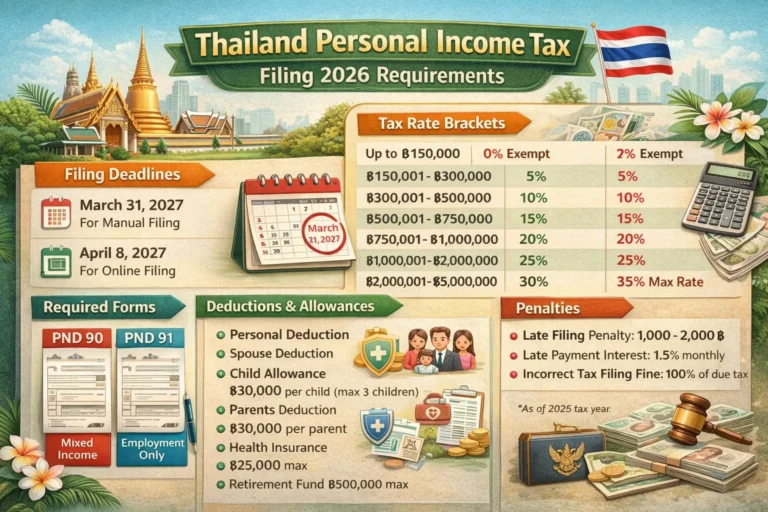
| ภ.ง.ด. 90 (P.N.D. 90) | Personal Income Tax | Freelancers, business owners, or mixed income (salary + other). |
| ภ.ง.ด. 91 (P.N.D. 91) | Personal Income Tax | Employees only (salary income solely from Section 40(1)). |
| ภ.ง.ด. 94 (P.N.D. 94) | Half-Year Tax | Mid-year filing for business owners (filed July-Sept). |
| ภ.พ. 30 (P.P. 30) | VAT Return | Monthly Value Added Tax filing (for businesses earning >1.8M THB/year). |
3. Step-by-Step Navigation Guide
Step 1: Login
- Go to
https://efiling.rd.go.th. - Click [ เข้าสู่ระบบ ] (Log In) at the top right.
- Username: Enter your 13-digit Tax ID (TIN) or Passport Number (if registered with it).
- Password: Enter your password.
- Laser ID: (For Thai nationals only) Enter the code on the back of the ID card. Foreigners can typically skip or use their passport reference if prompted.
Step 2: Dashboard & Form Selection
Once logged in, look for a large menu bar or grid of icons.
- Action: Click on the tab labeled ยื่นแบบ (File Return).
- Select: Choose ภ.ง.ด. 90/91 for annual personal tax.
Step 3: Data Entry (The 5 Tabs)
The filing process is split into 5 pages/tabs at the top of the screen.
- ข้อมูลผู้มีเงินได้ (Taxpayer Info): Confirm your address and status (Single/Married).
- Look for: สถานะ (Status) -> โสด (Single) / สมรส (Married).
- เงินได้ (Income): Enter your earnings.
- Key Field: มาตรา 40(1) (Section 40(1)) = Salary/Wages.
- Key Field: ภาษีหัก ณ ที่จ่าย (Withholding Tax) = Tax already deducted by your employer.
- ลดหย่อน (Deductions): Enter allowances (Social Security, Insurance, Spouse).
- Social Security: ประกันสังคม.
- Life Insurance: เบี้ยประกันชีวิต.
- คำนวณภาษี (Calculation): The system auto-calculates.
- ภาษีที่ต้องชำระเพิ่มเติม (Net Tax Payable): Amount you owe.
- ภาษีที่ชำระไว้เกิน (Tax Overpaid): Amount eligible for refund.
- ยืนยันการยื่นแบบ (Confirm): Review and submit.
- Refund Request: If you overpaid, check the box ต้องการขอคืนภาษี (Request Refund). If you don’t check this, you donate the refund to the state.
Step 4: Submission & Payment
- Submit Button: Look for a green button labeled [ ยื่นแบบ ] (Submit) or [ ตกลง ] (Confirm).
- Print Receipt: Look for พิมพ์แบบ / ใบเสร็จ (Print Form / Receipt).
4. Technical Glossary for Form Fields
| Thai Term | Transliteration | English Translation |
|---|---|---|
| ปีภาษี | Pee Pha-see | Tax Year (Remember: Thai Year 2568 = 2025 AD) |
| เงินได้พึงประเมิน | Ngoen Dai | Assessable Income (Total income before deductions) |
| หัก ณ ที่จ่าย | Hak Na Thee Jai | Withholding Tax (Tax already paid) |
| ลดหย่อน | Lot Yon | Deduction / Allowance |
| เงินบริจาค | Ngoen Bor-ri-jak | Donation (Often deductible 2x for education) |
| ยกเลิก | Yok Loek | Cancel |
| บันทึกร่าง | Ban Tuek Rang | Save Draft |
| ถัดไป | Thad Pai | Next > (Button usually on the bottom right) |
Important Tip: The “RD Prep” Tool
For complex filings (like bulk P.N.D. 3/53 for businesses), the RD website requires you to download a program called RD Prep.
- Download: Found on the e-filing homepage under “Service”.
- Function: It converts Excel sheets into the
.rdxformat required for upload. It is not typically needed for individual P.N.D. 90/91 personal filings.